This article outlines the existing Arthur features that can support you and your team throughout the Renters' Rights transition.
How to Update a Tenancy to Periodic Status
Updating a tenancy to Periodic status can be done either individually or in bulk, depending on how many records you need to change. The steps below outline both methods.
Updating a Single Tenancy
To update one tenancy at a time:
- Open the tenancy record.
- Select Menu > Update status.
- Choose Periodic from the status options.
- Save your changes.
This immediately updates the tenancy to a periodic agreement.
Updating Multiple Tenancies at Once
If you need to update several tenancies:
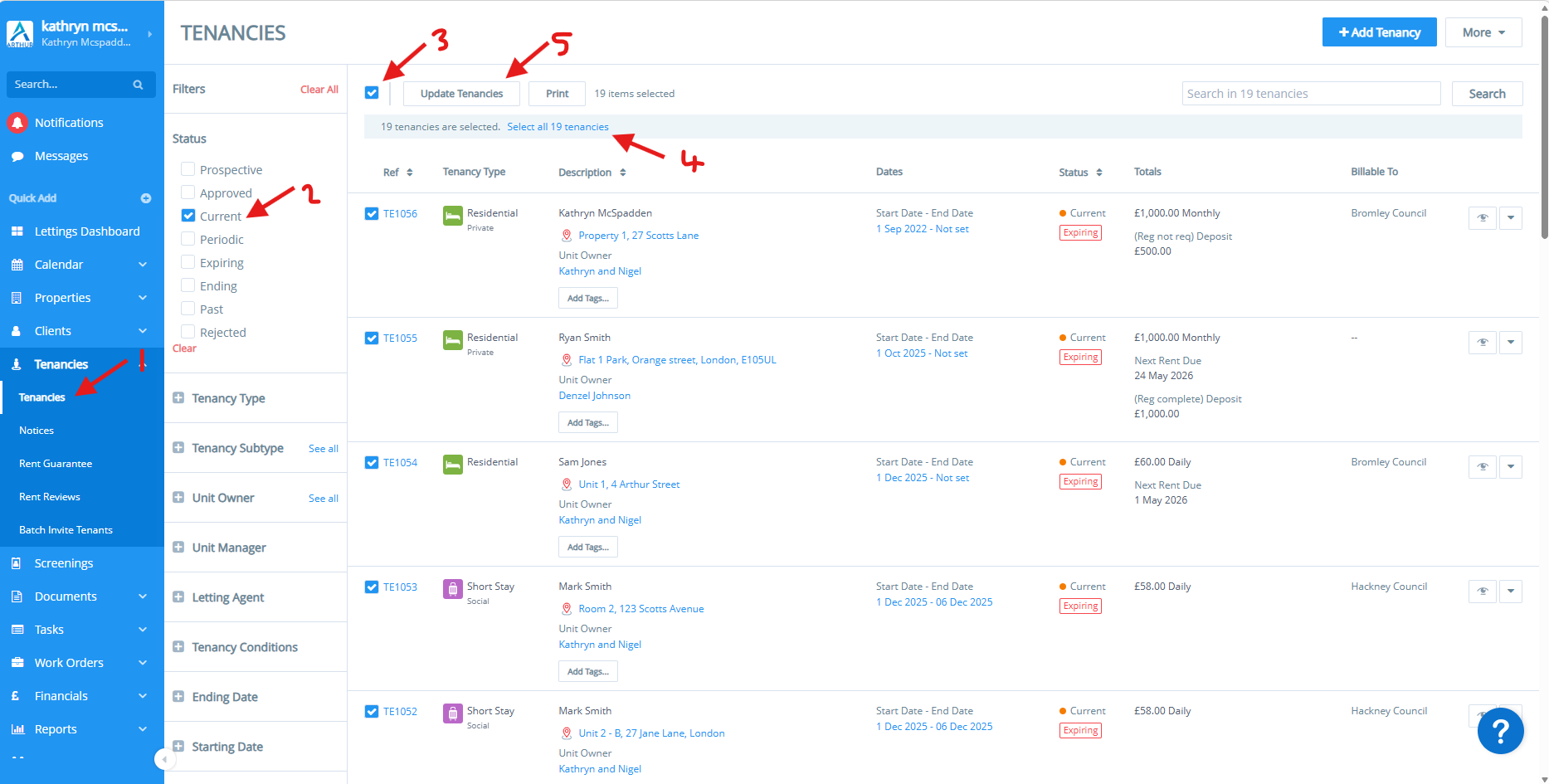
- Go to the Tenancy index page.
- Select the tenancies you want to update using the tick boxes.
- You can use the top tick box to select all items on the page.
- If you want to include all pages, choose Select all X tenancies.
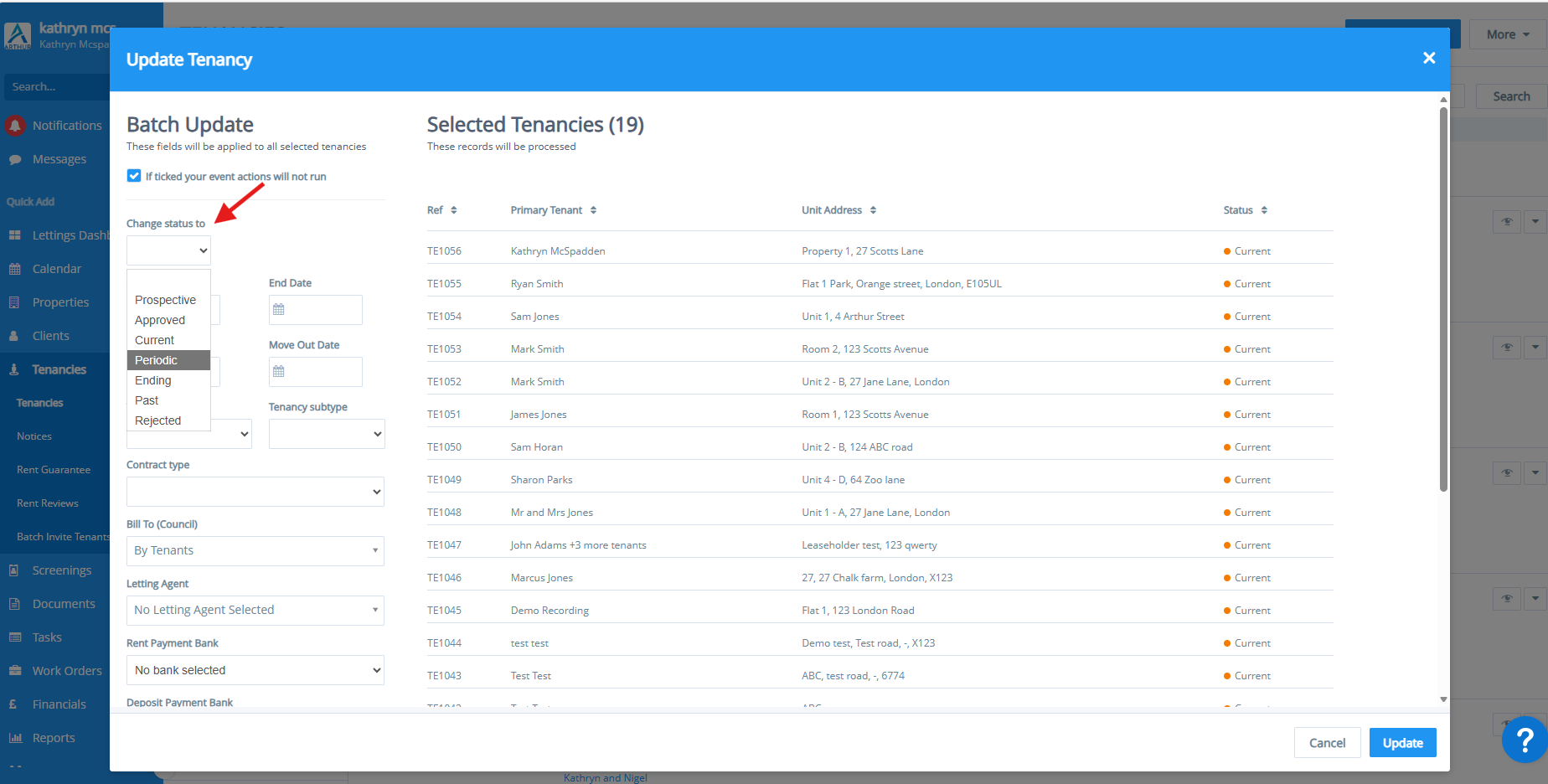
- Choose Update tenancy from the available actions.
- Set the status to Periodic.
- Save the update.
Issuing the Official Information Sheet to All Tenants
How the Group Message Works
When sending the Information Sheet through the group‑messaging system:
- Recipient emails remain hidden from one another.
- Replies are not shared with the group – any replies will be one-to-one and not group
- All active tenants receive the same message and attachment
Steps to Send the Information Sheet
To issue the Information Sheet to all tenants:
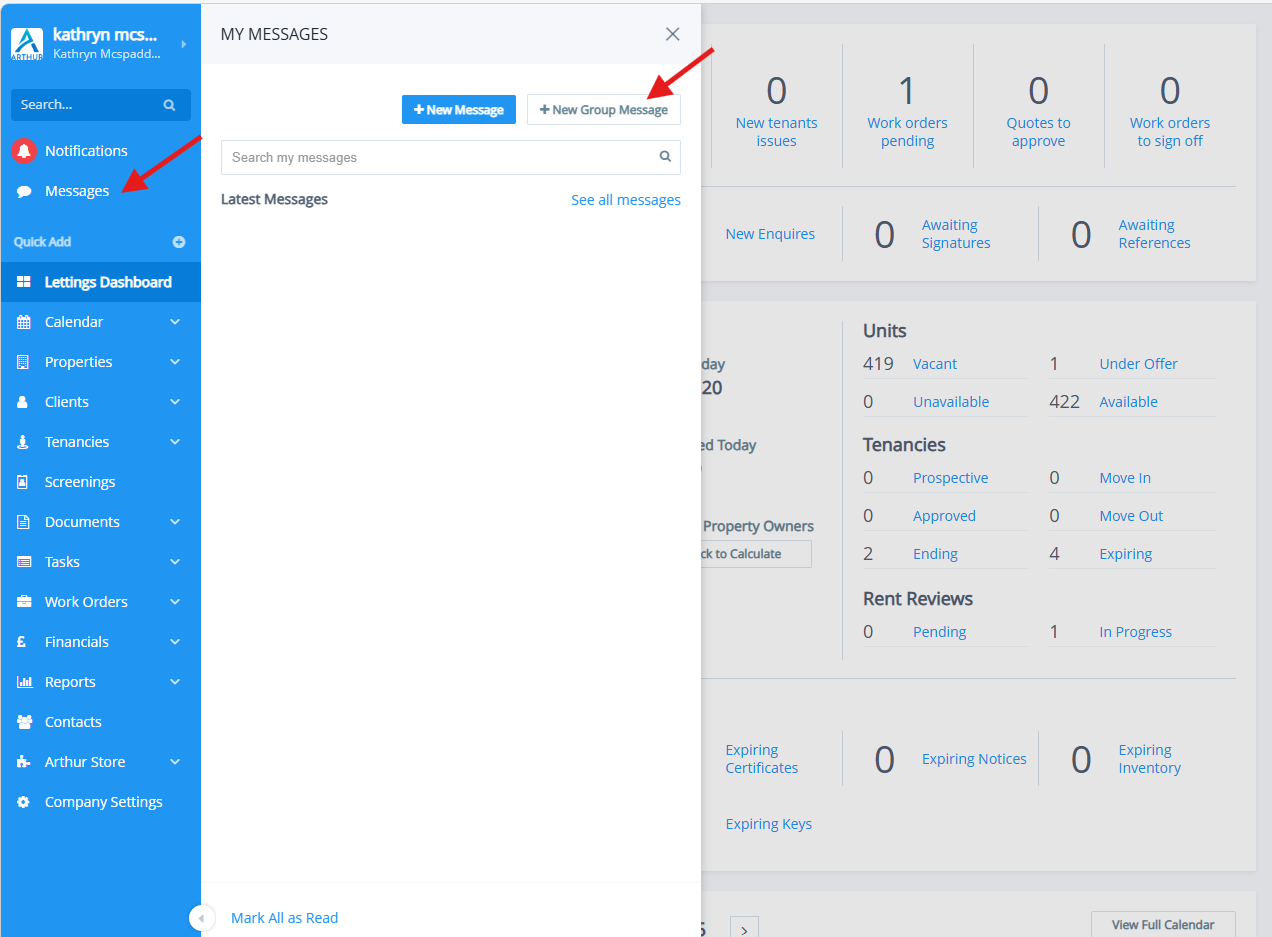
- Click "Messages."
- Select "Group Message."
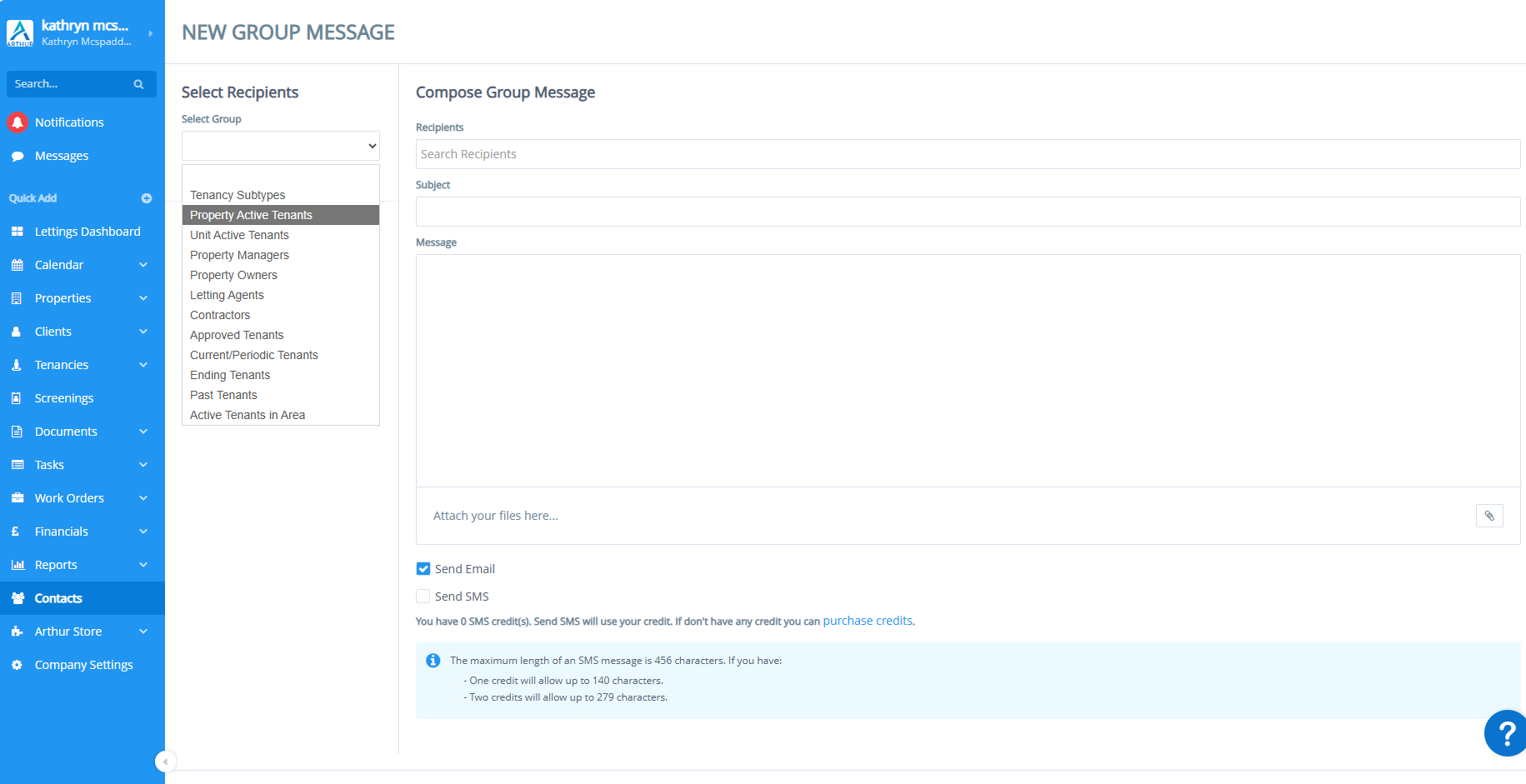
- Choose the appropriate tenant group (e.g., "Property Active Tenants").
- Attach the new Information Sheet to the message.
How to make a prospective and approved tenancies periodic?
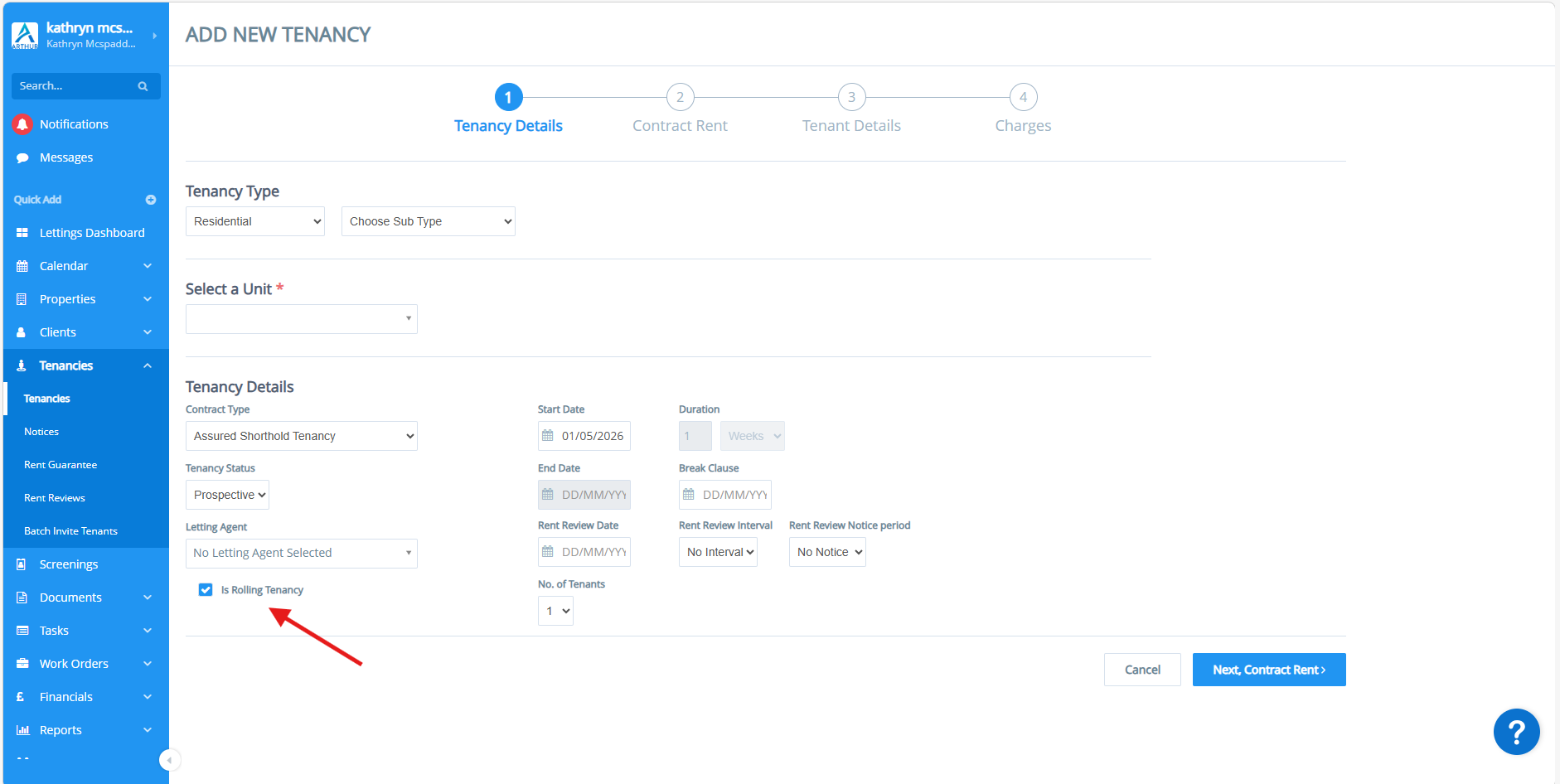
To add prospective tenancies without adding an end date:
- When adding a tenancy set the status as Prospective or approved.
- Tick the check box 'Is Rolling Tenancy'
- The end date and duration will be greyed out
How to Disable Automations relating to Tenancy expiry, Renewals, or End-of-term reminders?
To turn off automations:
- Go to automations
- Select tenancies
- Check any automations related to tenancy expiry, renewals or end-of-term reminders
- To disable > Click on edit > un-check 'Action is active and will run'
This can also be done for any actions relating to Rent reviews.
How to add a new contract type?
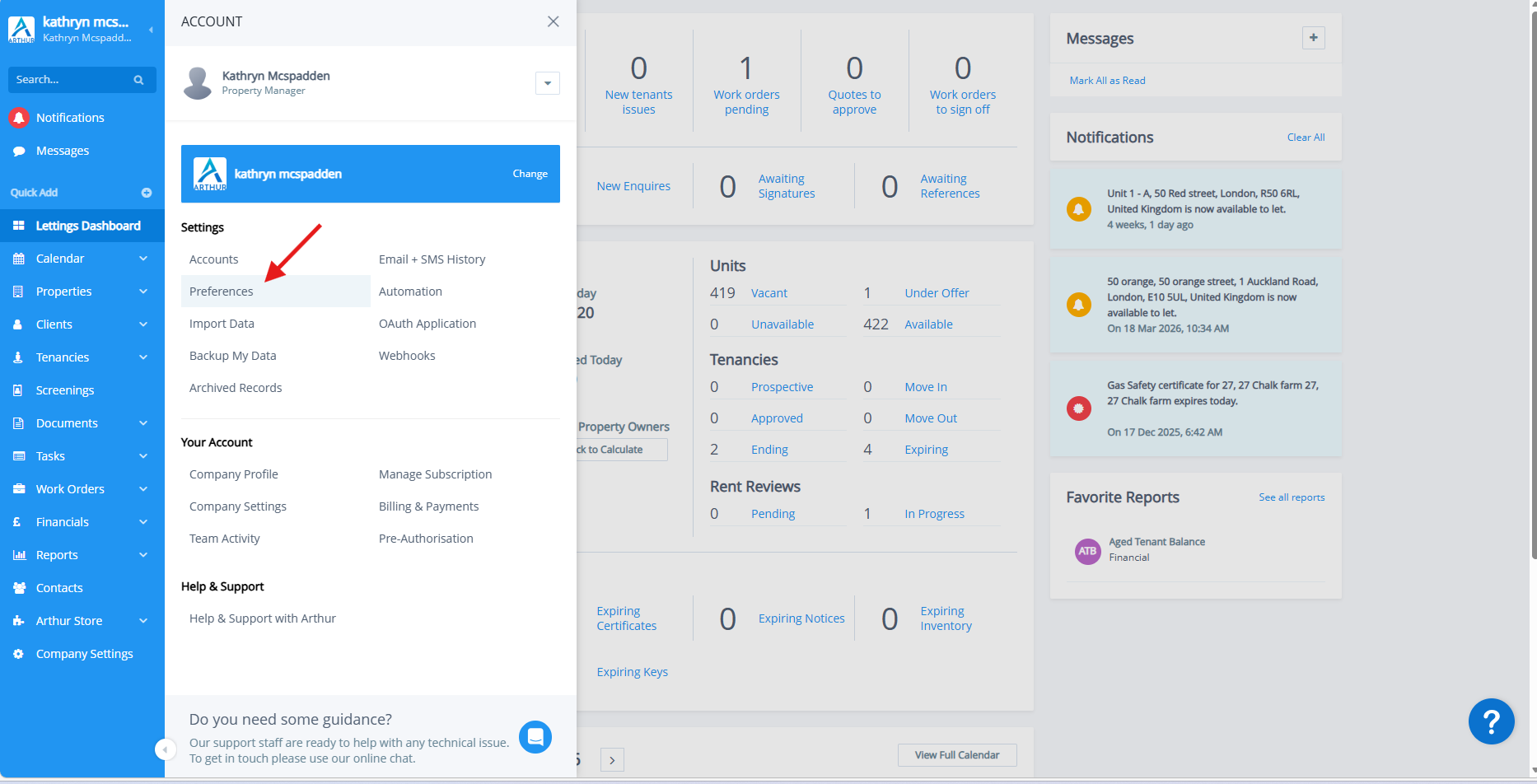
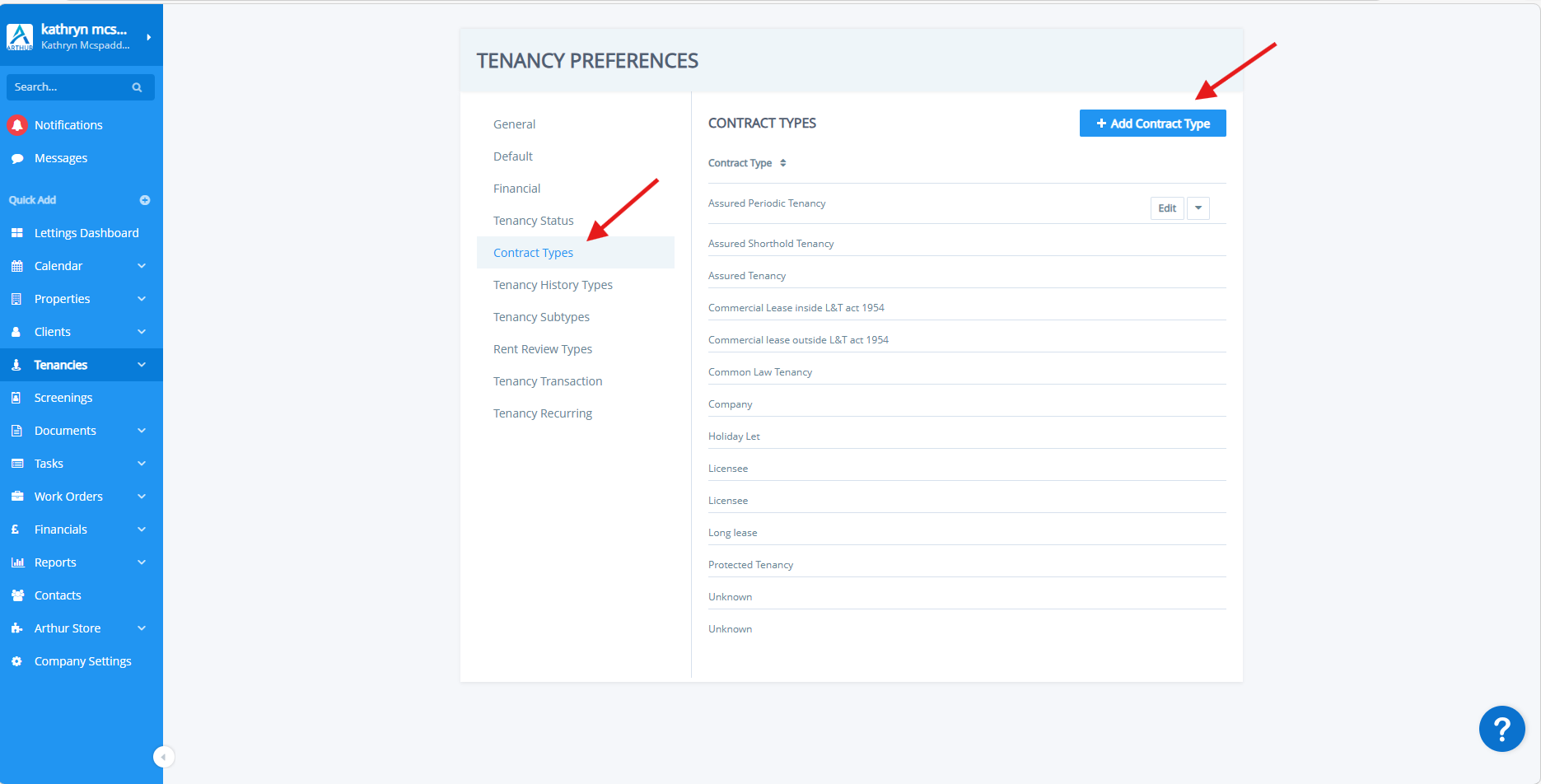
You can add a new contract type, for example, "Assured Periodic Tenancy"
To add a custom contract type:
- Go to preferences
- Tenancies
- Contract Types
How to update rent reviews?
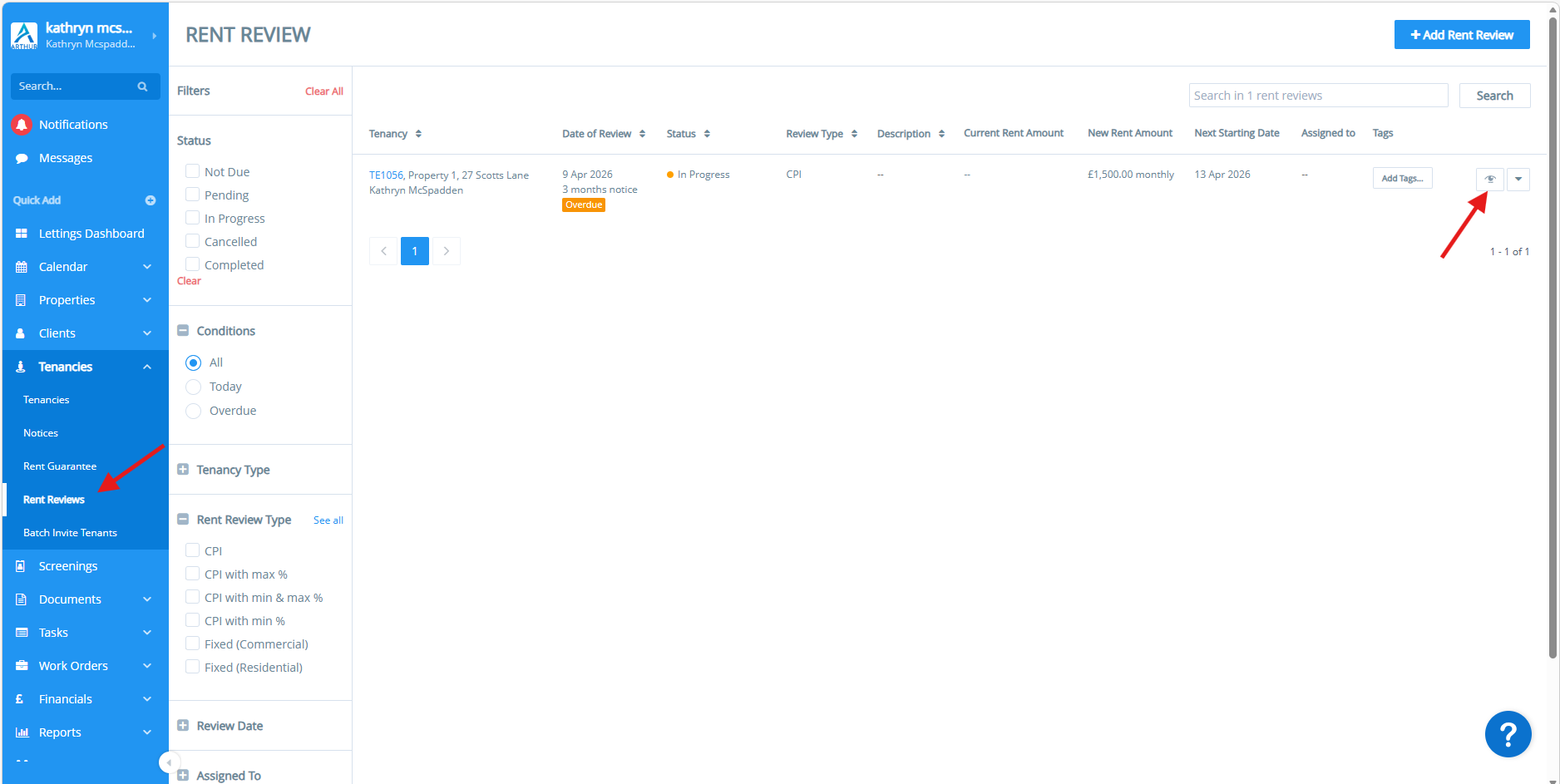
In line with the Renters' Rights Act, rent review notice periods may need to be changed.
To update rent reviews:
- Go to tenancies
- Select rent reviews
- Click the eye symbol > can make any necessary changes
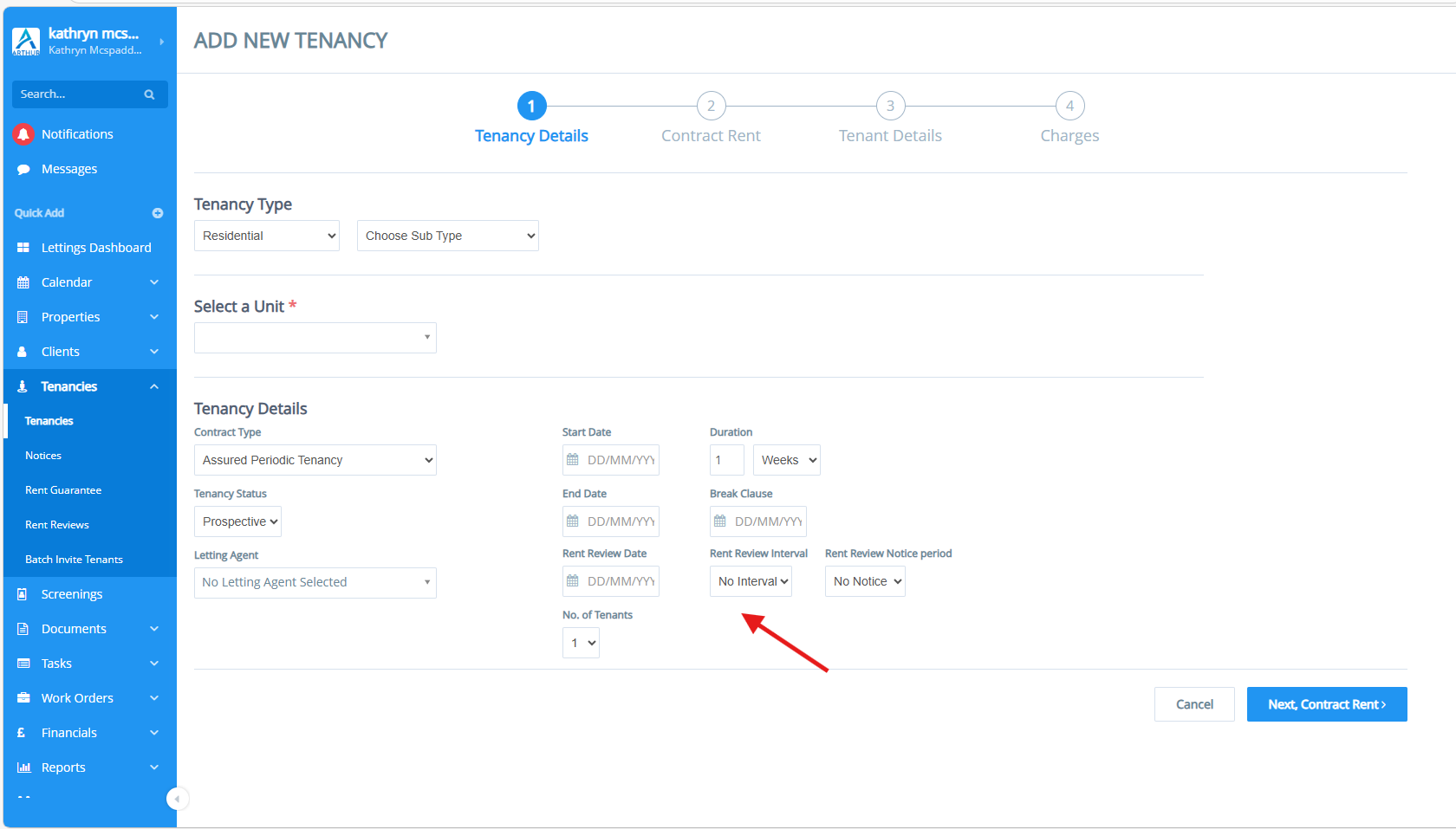
For new tenancies:
- When creating a tenancy, you can include rent review information, such as the rent review date and the rent review interval.
How to create a mail merge document & How to include Custom & System variables?
To create a template for creating new contracts, please see these articles:
How to mail merge a document : Arthur Support
Was this article helpful?
That’s Great!
Thank you for your feedback
Sorry! We couldn't be helpful
Thank you for your feedback
Feedback sent
We appreciate your effort and will try to fix the article